
Introduction to Unity Game Development
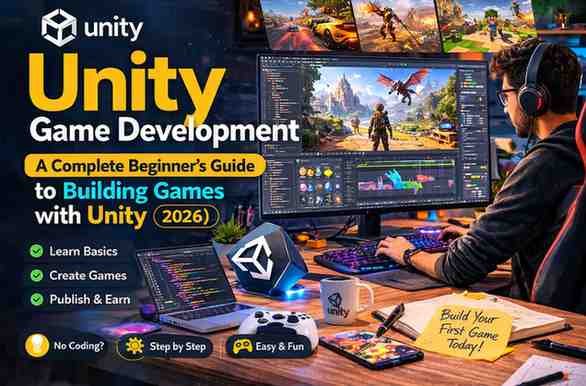
Unity game development has become one of the most popular ways to create games for multiple platforms including PC, mobile devices, consoles, and the web. The Unity game engine is widely used by indie developers, hobbyists, students, and professional studios because of its flexibility, powerful features, and beginner-friendly tools.
Unity allows developers to build 2D games, 3D games, augmented reality (AR) experiences, and virtual reality (VR) applications using a single development environment. With support for the C# programming language, a massive asset ecosystem, and an active community, Unity has become one of the leading engines in the gaming industry.
Many successful games have been created using Unity, which proves its capability as a professional game development platform. Whether you are an aspiring developer or someone exploring game design for the first time, Unity provides the tools needed to turn creative ideas into playable experiences.
One of the biggest reasons for Unity’s popularity is that it offers a free version for beginners and independent developers, making it accessible to almost anyone interested in learning game development.
If you are wondering how to start creating games, this guide will walk you through the essential aspects of Unity game development, including installation, core concepts, scripting, building games, and publishing them to different platforms.
Key Features of Unity
Unity includes a wide range of tools that make game development easier and more efficient. Below are some of the key features that make Unity one of the best engines for beginners and professionals.
Cross-Platform Development
One of Unity’s biggest strengths is its ability to export games to multiple platforms. Developers can create a game once and deploy it to platforms like:
- Windows
- macOS
- Android
- iOS
- WebGL
- PlayStation
- Xbox
- Nintendo Switch
This makes Unity a powerful engine for developers who want their games to reach a wider audience.
Real-Time Rendering
Unity provides real-time rendering technology that allows developers to see how the game will look while they are building it. This speeds up development and allows for quick adjustments to lighting, materials, and environments.
Physics Engine
Unity includes a built-in physics engine that handles realistic interactions between objects. This includes features such as:
- Gravity
- Collisions
- Rigidbody physics
- Character movement
These features help developers create realistic gameplay mechanics without needing to build complex physics systems from scratch.
Animation System
Unity includes a robust animation system that allows developers to animate characters, objects, and environments. Animations can be controlled through the Animator Controller and blended smoothly between different states.
Asset Store
One of the most valuable features of Unity is the Unity Asset Store, where developers can download pre-made assets including:
- 3D models
- Sound effects
- Music
- Game templates
- Animations
- Scripts and plugins
Many assets are available for free, which helps beginners create games without designing everything from scratch.
System Requirements and Installation

Before starting with Unity game development, you need to install the Unity software on your computer.
Minimum System Requirements
While Unity can run on many systems, the recommended specifications are:
- Operating System: Windows 10/11, macOS, or Linux
- Processor: Dual-core CPU or higher
- RAM: 8 GB recommended
- Graphics: DirectX 11 compatible GPU
- Storage: At least 10 GB of free space
Installing Unity
Follow these steps to install Unity:
- Visit the official Unity website:
https://unity.com/download - Download Unity Hub, which is the application used to manage Unity versions and projects.
- Install Unity Hub on your computer.
- Open Unity Hub and sign in with a Unity account.
- Install the latest Unity Editor version.
- Select additional modules such as:
- Android Build Support
- WebGL Build Support
- iOS Build Support
Once the installation is complete, you can create your first Unity project.
Understanding the Unity Interface
When you open Unity for the first time, the interface may seem complex. However, once you understand the main panels, it becomes much easier to navigate.
Scene View
The Scene View is where you design and arrange your game world. Developers can move objects, place characters, and adjust environments here.
Game View
The Game View shows how the game looks when it is played. It represents what the player will see on their screen.
Hierarchy Panel
The Hierarchy panel displays all objects in the current scene. Every object in the game world appears here.
Inspector Panel
The Inspector allows you to modify the properties of selected objects. For example, you can adjust position, rotation, scale, materials, or scripts.
Project Window
The Project window contains all the assets used in the project, including:
- Scripts
- Textures
- Models
- Audio files
- Animations
Console Window
The Console displays error messages, warnings, and debugging information related to your scripts.
Understanding these panels is the first step toward becoming comfortable with the Unity development environment.
Core Concepts in Unity
Before building games, it is important to understand several core Unity concepts.
GameObjects
GameObjects are the fundamental objects in Unity. Every item in a Unity scene is a GameObject, including characters, cameras, lights, and environmental objects.
Components
Components add functionality to GameObjects. For example:
- Transform controls position and rotation
- Mesh Renderer displays the object visually
- Collider allows objects to interact with physics
- Audio Source plays sound effects
GameObjects can have multiple components attached to them.
Prefabs
Prefabs are reusable objects that can be saved and reused across different scenes. This helps developers maintain consistency and save time.
Scenes
Scenes represent different levels or parts of a game. For example:
- Main Menu
- Level 1
- Level 2
- Game Over screen
Each scene contains GameObjects that make up the game environment.
Scripts
Scripts control the behavior of GameObjects. Unity uses the C# programming language for scripting gameplay mechanics.
Creating Your First Game in Unity

Let’s walk through a simple beginner example to understand how Unity works.
Step 1: Create a New Project
Open Unity Hub and create a new 3D project.
Step 2: Add a Player Object
Add a Cube to the scene. This cube will represent the player.
Step 3: Create the Ground
Add a Plane object to act as the ground.
Step 4: Add Physics
Attach a Rigidbody component to the cube so it can interact with gravity.
Step 5: Create a Movement Script
Create a C+ script called PlayerMovement and attach it to the cube.
Example script:
using UnityEngine;public class PlayerMovement : MonoBehaviour
{
    public float speed = 5f;    void Update()
    {
        float moveX = Input.GetAxis("Horizontal");
        float moveZ = Input.GetAxis("Vertical");        transform.Translate(new Vector3(moveX, 0, moveZ) * speed * Time.deltaTime);
    }
}
Step 6: Press Play
Click the Play button to test the game. The cube should now move using the keyboard controls.
This simple project demonstrates the basic workflow of Unity game development.
Unity Programming with C+
Unity relies heavily on C# scripting to control gameplay behavior.
Scripts are attached to GameObjects and executed during the game.
Some important Unity functions include:
Start()
The Start() method runs once when the game begins.
Update()
The Update() method runs every frame. It is used for player movement and real-time interactions.
FixedUpdate()
This function is used for physics calculations and runs at fixed time intervals.
Learning the basics of C# programming will greatly improve your ability to build complex gameplay systems in Unity.
For official documentation and tutorials, you can visit the Unity learning platform:
Unity Asset Store
The Unity Asset Store is a massive marketplace for game development resources.
Developers can download:
- Character models
- Environment assets
- Sound effects
- Music tracks
- Animation packs
- Game templates
- Plugins and tools
Many free assets are available, making it easier for beginners to prototype games quickly.
The Asset Store can be accessed directly from the Unity Editor or through the official website:
Using pre-built assets can significantly speed up development, especially when learning the basics of game design.
Building and Publishing Games

Once your game is complete, the next step is to build and publish it.
Supported Platforms
Unity allows developers to export games to multiple platforms including:
- Android
- iOS
- Windows PC
- macOS
- Linux
- Web browsers (WebGL)
- Game consoles
Build Process
Follow these steps to build your game:
- Open File → Build Settings
- Select the target platform
- Add the current scene to the build list
- Click Build
- Choose a folder to export the game
After building the project, the game can be distributed through app stores or online platforms.
For example:
- Google Play Store
- Apple App Store
- Steam
- Itch.io
Tips for Beginner Unity Developers
Learning Unity can be challenging at first, but these tips will help beginners improve faster.
Start with Small Projects
Instead of building a large game immediately, start with simple projects such as:
- A basic platformer
- A simple racing game
- A puzzle game
Small projects help build experience and confidence.
Learn C+ Fundamentals
Understanding programming fundamentals will make Unity development much easier.
Topics to learn include:
- Variables
- Loops
- Functions
- Classes
- Object-oriented programming
Follow Tutorials
Online tutorials can accelerate the learning process. Video tutorials and documentation provide step-by-step guidance.
Use Version Control
Using tools like Git helps developers track changes and prevent project loss.
Optimize Assets
Large textures and models can slow down a game. Optimize assets to ensure smooth performance.
Join Developer Communities
Participating in forums and communities helps developers learn from others and solve problems quickly.
Common Mistakes Beginners Make
New developers often make mistakes while learning Unity. Understanding these mistakes can help avoid them.
Starting with a Huge Project
Many beginners try to create large open-world games immediately. It is better to start small and build gradually.
Ignoring Performance Optimization
Games should be optimized for smooth performance, especially on mobile devices.
Not Learning Programming Basics
Unity scripting requires basic programming knowledge. Skipping this step can slow progress.
Downloading Too Many Assets
Using too many assets can make a project messy and difficult to manage.
Lack of Project Organization
Keeping files organized in folders helps maintain a clean project structure.
Learning Resources
Several resources can help beginners learn Unity game development effectively.
Official Unity Documentation
Unity’s official documentation provides detailed explanations of every feature in the engine.
Unity Learn Platform
Unity Learn offers tutorials, courses, and beginner learning paths.
YouTube Tutorials
Many experienced developers share free tutorials covering game mechanics, programming, and project creation.
Online Courses
Platforms like Udemy and Coursera offer structured courses for beginners and advanced developers.
Conclusion
Unity game development is one of the best ways to start building games, thanks to its powerful tools, cross-platform capabilities, and beginner-friendly environment. Whether you want to create 2D mobile games, immersive 3D worlds, or VR experiences, Unity provides everything needed to bring your ideas to life.
By understanding the Unity interface, learning the core concepts such as GameObjects and components, practicing C# scripting, and experimenting with small projects, beginners can quickly develop practical game development skills.
The journey to becoming a skilled Unity developer takes time, practice, and creativity. However, with the right learning resources, consistent experimentation, and community support, anyone can learn how to build engaging and interactive games using Unity.
If you are interested in game development, now is the perfect time to start exploring Unity and turning your ideas into playable experiences.